
Maximizing Laptop Battery Life: The Complete Guide to Health, Settings, and Hardware Optimization
Whether you rely on an HP Spectre for mobile productivity, a Windows ultrabook for campus lectures, or a high-performance workstation on the road, battery life dictates your mobility. Few experiences are as frustrating as watching your charge percentage drop while you are away from a wall outlet.
While lithium-based batteries chemically degrade over time, rapid battery drain is rarely caused by aging hardware alone. In most cases, background software tasks, unoptimized power profiles, excessive display brightness, and thermal stress silently drain power reserves.
This guide details actionable strategies to maximize daily battery life on your Windows or HP laptop—while preserving the long-term health of your battery cell for years to come.
Understanding Your Battery: Chemistry and Cycles
To extend battery runtime, it helps to understand how modern laptop batteries function.
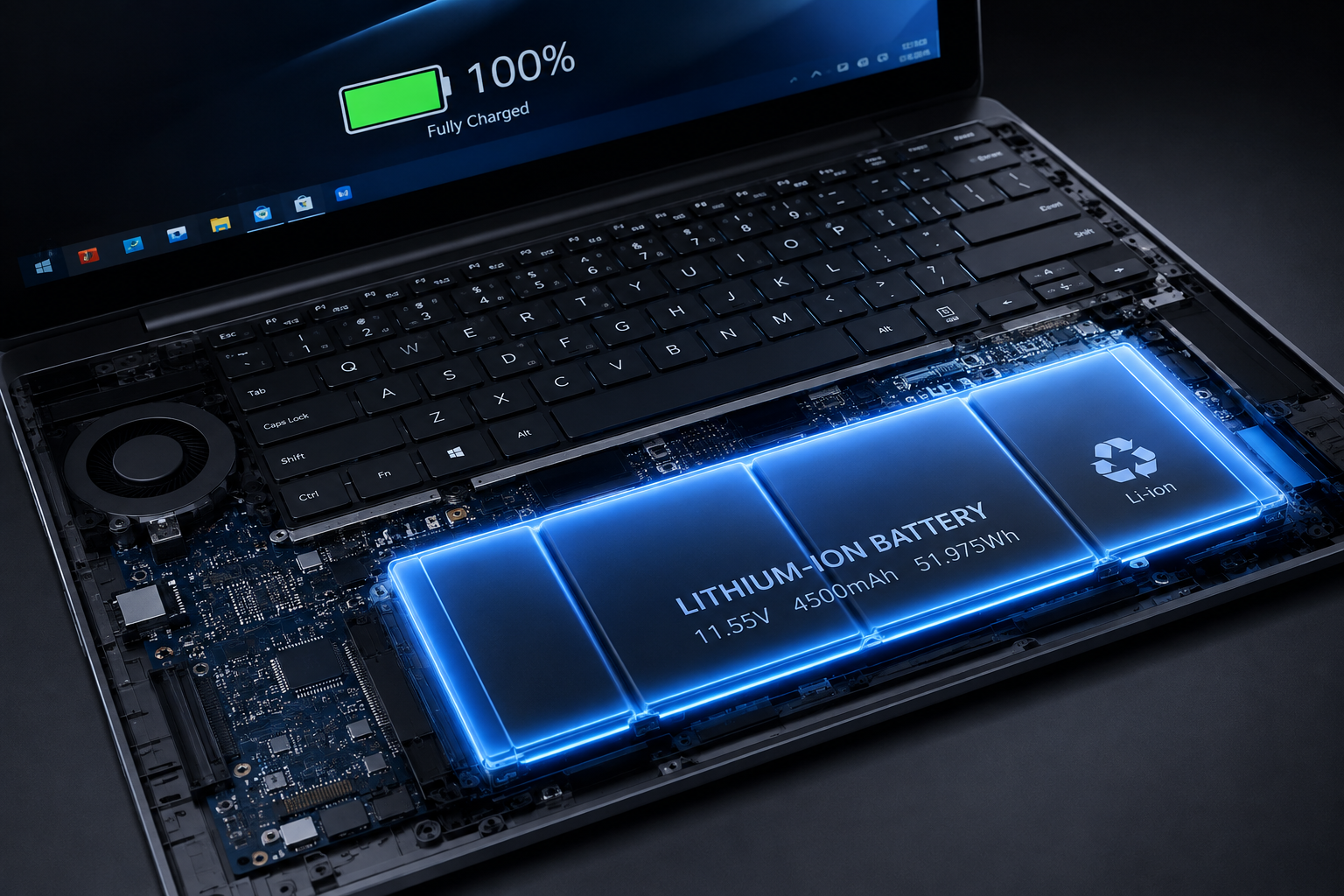
Most contemporary laptops utilize Lithium-Ion (Li-ion) or Lithium-Polymer (Li-Po) cells. These batteries offer high energy density and zero “memory effect”—meaning you do not need to fully discharge them before recharging.
                       ┌──────────────────────────────┐
                       │   One Complete Charge Cycle  │
                       │    (100% Total Consumption)  │
                       └──────────────┬───────────────┘
                                      │
        ┌─────────────────────────────┴─────────────────────────────┐
        ▼                                                           ▼
┌──────────────────────────────┐            ┌──────────────────────────────┐
│     Day 1: Used 70% Charge   │  ────────> │     Day 2: Used 30% Charge   │
│     (Recharged to 100%)      │            │     (Completes 1 Full Cycle) │
└──────────────────────────────┘            └──────────────────────────────┘
The Anatomy of Battery Degradation
Every laptop battery is rated for a specific number of charge cycles—typically between 300 and 1,000 cycles—before its maximum usable capacity drops below 80%.
What is a Charge Cycle? A charge cycle occurs when you use an amount of power equal to 100% of your battery’s capacity. This can occur over multiple sessions. For example, using 70% of your battery today, fully recharging it overnight, and using 30% tomorrow equals one full charge cycle.
Chemical Stressors: Heat and extreme states of charge (0% or 100%) subject battery cells to elevated voltage stress. Keeping a battery constantly pegged at 100% while running hot accelerates internal degradation faster than normal charge cycles.
Part 1: Quick Wins for Immediate Daily Battery Savings
If you need your laptop to last through an extended session without a charger, these immediate software adjustments yield instant improvements.
1. Calibrate Display Brightness and Use Adaptive Lighting
The display backlight is often the single largest power draw on a modern laptop, frequently consuming up to 30–40% of overall system energy when set to maximum.
Lower Manual Brightness: Reducing screen brightness from 100% down to 40–50% can instantly add 1 to 2 hours of operational runtime.
Enable Auto-Brightness: Windows includes adaptive brightness features that utilize ambient light sensors to dynamically scale screen illumination based on your surroundings.
2. Leverage Windows Power & Battery Modes
Windows offers built-in power profiles designed to adjust how aggressively the CPU scales clock speeds and manages idle hardware components.
               ┌──────────────────────────────────────────────┐
               │         Windows Battery Saver Mode           │
               └──────────────────────┬───────────────────────┘
                                      │
     ┌────────────────────────────────┼────────────────────────────────┐
     ▼                                ▼                                ▼
┌─────────────────────────┐  ┌─────────────────────────┐  ┌─────────────────────────┐
│ Lower Peak CPU Clocks   │  │ Disable Background Apps │  │ Dim Display Illumination│
│ (Reduces Power Draw)    │  │ (Stops Unwanted Syncs)  │  │ (Saves Panel Energy)    │
└─────────────────────────┘  └─────────────────────────┘  └─────────────────────────┘
Accessing Slider Controls: Click the battery icon in the system tray and drag the slider toward Best Power Efficiency.
Enable Battery Saver: Set Windows Battery Saver to toggle on automatically when your battery reaches 20–30%. This feature restricts background email syncs, limits Live Tile updates, lowers screen brightness, and halts background Windows updates.
3. Audit Background Applications and Rogue Processes
Applications running silently in the system tray drain battery reserves even when you are not actively using them.
Check Energy Usage in Windows Settings: Navigate to
Settings→System→Power & battery→Battery usage. Identify apps with high background activity and restrict their execution permissions.Kill Resource Heavy Tasks: Press
Ctrl + Shift + Escto open Task Manager. Sort processes by CPU and Network utilization. Close background updaters, cloud sync clients, launcher apps, and unused torrent platforms.
Part 2: Advanced Windows Software & Power Optimization
For sustainable efficiency gains, adjust deep system settings to curb unnecessary hardware resource allocation.
1. Optimize Graphics Processing (iGPU vs. dGPU)
Laptops equipped with dedicated graphics cards (NVIDIA GeForce or AMD Radeon) feature dual-GPU architectures: an energy-efficient Integrated GPU (iGPU) embedded on the CPU, and a high-performance Discrete GPU (dGPU).
Running basic desktop apps on the discrete GPU causes power consumption to jump significantly, reducing battery life.
Force iGPU for Daily Productivity: Navigate to
Settings→Display→Graphics. Select productivity apps (browsers, document editors, media players) and manually assign them to Power Saving (Integrated Graphics).NVIDIA Control Panel: Open the NVIDIA Control Panel, select Manage 3D Settings, set the Preferred Graphics Processor to Auto-select or Integrated graphics, and ensure applications are not waking up the dedicated GPU unnecessarily.
2. Tame Your Web Browser
Web browsers are notoriously resource-intensive. Modern web pages run complex JavaScript scripts, video feeds, and background requests that keep the CPU active.
| Browser | Recommended Power Feature | Action |
|---|---|---|
| Microsoft Edge | Efficiency Mode | Automatically puts inactive tabs to sleep and optimizes CPU usage. Enable in Settings → System and performance. |
| Google Chrome | Energy Saver & Memory Saver | Limits background activity and frees up RAM from inactive tabs. Enable in Settings → Performance. |
| Brave / Firefox | Tab Suspending / Hardware Acceleration | Use native tab-discarding features to prevent background web scripts from consuming power. |
3. Manage Wireless Antennas and Peripherals
Radio transmitters constantly draw power as they poll for available connections.
Disable Bluetooth and Wi-Fi When Offline: If you are editing local documents or watching offline media, turn off Wi-Fi and Bluetooth via the Action Center (
Win + A).Unplug Unused External Accessories: USB flash drives, external hard drives, RGB mice, and cooling pads draw operating power directly from the laptop motherboard, even when idle.
Part 3: Specialized Strategies for HP Laptop Owners
HP laptops include proprietary hardware management utilities and specialized BIOS configurations designed to boost efficiency and preserve battery capacity.
1. Utilize the HP Command Center
On HP Envy, Spectre, and OMEN devices, the HP Command Center governs thermal profiles, fan activity, and CPU power limits.
Thermal Profiles: Switch from Recommended or Performance mode over to Cool or Quiet mode when working on battery.
Why it Works: Quiet mode limits CPU power draw, preventing internal temps from rising and keeping system cooling fans operating at lower, less power-demanding speeds.
                          ┌──────────────────────────────┐
                          │    HP Command Center Setup   │
                          └──────────────┬───────────────┘
                                         │
                   ┌─────────────────────┴─────────────────────┐
                   ▼                                           ▼
      ┌───────────────────────────┐               ┌───────────────────────────┐
      │     Performance Mode      │               │     Quiet / Cool Mode     │
      ├───────────────────────────┤               ├───────────────────────────┤
      │ • Max CPU/GPU clock speeds │               │ • Caps CPU voltage limits │
      │ • High fan power draw     │               │ • Low fan RPM energy draw │
      │ • Accelerated battery drain│               │ • Extended battery runtime│
      └───────────────────────────┘               └───────────────────────────┘
2. Enable HP Smart Charging in BIOS / HP System Event Utility
To prevent permanent battery swelling and capacity loss, modern HP systems utilize built-in battery management technologies.
HP Adaptive Battery Optimizer: Integrated into the BIOS on newer HP devices, this system monitors battery temperature, charging status, and usage patterns. It automatically adjusts charging parameters to slow battery aging without requiring user intervention.
Enabling in BIOS: Power on your HP laptop and repeatedly tap
F10to enter BIOS Setup. Navigate toConfigurationorAdvanced, locate Adaptive Battery Optimizer, and ensure it is set to Enabled.
3. Run Diagnostics via HP PC Hardware Diagnostics
If your HP laptop suffers from sudden shutdowns or rapid drain, verify the physical health of the battery cell using built-in software tools:
Turn off the laptop, connect the AC adapter, and press the power button while tapping
Escrepeatedly until the Startup Menu appears.Press
F2to open HP PC Hardware Diagnostics.Select Component Tests → Power → Battery Test → Run Once.
The utility will output a status report: Passed, Calibrate, or Replace.
Part 4: Preserving Long-Term Battery Health
Extending daily runtime is only half the battle; you must also preserve the long-term health of your battery cell to avoid costly replacements.
The 20-80 Rule for Battery Charging
Exposing lithium-ion cells to maximum voltage (100%) or complete depletion (0%) causes chemical degradation over time. Maintaining a state of charge between 20% and 80% significantly reduces stress on the battery’s internal materials.
                  ┌──────────────────────────────────────────────┐
                  │             100% Charge Range                │
                  └──────────────────────┬───────────────────────┘
                                         │
                   ┌─────────────────────┴─────────────────────┐
                   ▼                                           ▼
      ┌───────────────────────────┐               ┌───────────────────────────┐
      │   Optimal Range (20%-80%) │               │ Extreme Stress Zones      │
      ├───────────────────────────┤               ├───────────────────────────┤
      │ • Low chemical stress     │               │ • 0% - 20%: Deep discharge│
      │ • Preserves total cycles  │               │ • 80% - 100%: High voltage│
      │ • Doubles battery lifespan│               │ • Accelerates cell degradation│
      └───────────────────────────┘               └───────────────────────────┘
Configuring Smart Battery Charging Thresholds
Most laptop manufacturers provide companion applications that allow users to limit the maximum charge level when connected to wall power.
HP: Enable Max Battery Health Mode within BIOS settings to cap the maximum charge level at 80%.
Dell: Use Dell Power Manager to configure a custom charge threshold (e.g., Start charging at 50%, Stop at 80%).
Lenovo: Enable Conservation Mode inside Lenovo Vantage to cap charges at 60%.
ASUS: Set Battery Health Charging inside MyASUS to Maximum Lifespan Mode (60% or 80%).
Manage Thermal Stress
Heat is the primary cause of premature battery degradation. Operating a laptop at high temperatures speeds up internal chemical reactions that breakdown battery capacity.
Avoid Soft Surfaces: Never work with your laptop rested on blankets, pillows, or carpets. These soft materials block bottom intake vents, trapping heat inside the chassis and heating up the battery cell.
Avoid Hot Environments: Never leave a laptop inside a parked car in direct sunlight. Ambient temperatures inside vehicles can easily exceed 50∘C, causing permanent battery capacity loss.
Part 5: Comprehensive Battery Troubleshooting & Diagnostics
When battery runtime drops unexpectedly, systematic troubleshooting can help you identify whether the issue stems from background software or a degrading battery cell.
Generating a Windows Battery Report
Windows includes a hidden diagnostic command that generates a comprehensive health and usage history report.
Right-click the Start Menu button and select Terminal (Admin) or Command Prompt (Admin).
Type the following command and press
Enter:Bashpowercfg /batteryreportOpen File Explorer and navigate to
C:\Users\[YourUsername]\battery-report.html. Double-click the file to open it in your browser.
                    ┌──────────────────────────────────────────────┐
                    │      Windows Battery Report Analysis         │
                    └──────────────────────┬───────────────────────┘
                                           │
                     ┌─────────────────────┴─────────────────────┐
                     ▼                                           ▼
        ┌───────────────────────────┐               ┌───────────────────────────┐
        │       Design Capacity     │               │    Full Charge Capacity   │
        ├───────────────────────────┤               ├───────────────────────────┤
        │ Factory energy rating when│               │ Maximum energy capacity   │
        │ brand new (e.g., 56,000 mWh)│             │ currently (e.g., 42,000 mWh)│
        └───────────────────────────┘               └───────────────────────────┘
Interpreting the Report Data
Compare the Design Capacity against the Full Charge Capacity:
If your Full Charge Capacity is above 80% of the original Design Capacity, the battery cell is healthy. Unusually fast battery drain points to software background processes, high screen brightness, or power profile settings.
If your Full Charge Capacity drops below 50–60%, physical battery degradation has occurred, and a hardware battery replacement is recommended.
Part 6: Quick Action Reference
Refer to this simple summary table to implement recommended practices across daily usage habits, system configurations, and long-term care.
| Category | High-Impact Action | Expected Benefit |
|---|---|---|
| Display | Set manual screen brightness to 40–50%. | Adds up to 1 to 2 hours of immediate daily runtime. |
| Software | Set Windows Power Mode to Best Power Efficiency. | Reduces CPU clock speeds and curbs unnecessary background power draw. |
| Browsers | Turn on Efficiency Mode in Edge or Chrome. | Puts inactive tabs to sleep, freeing up system memory and reducing CPU load. |
| Graphics | Force integrated graphics (iGPU) for productivity apps. | Prevents high-wattage discrete GPUs from draining power during lightweight tasks. |
| HP Tools | Set HP Command Center thermal profile to Quiet. | Limits CPU power consumption and lowers cooling fan speeds. |
| Health | Cap charge thresholds to 80% via BIOS or companion apps. | Preserves long-term battery health and doubles overall charge cycle life. |
| Thermals | Avoid soft surfaces; keep intake vents completely clear. | Prevents elevated temperatures from degrading battery cells. |
Summary Checklist for Long-Term Battery Care
[ ] Set screen brightness to 50% or lower during mobile use.
[ ] Switch Windows power slider to Best Power Efficiency.
[ ] Enable Efficiency/Saver mode in your primary web browser.
[ ] Use manufacturer utilities (HP, Dell, Lenovo) to cap battery charging at 80%.
[ ] Generate a Windows
powercfg /batteryreportevery six months to monitor battery health.[ ] Keep intake vents unobstructed by working on hard, flat surfaces.
Applying these straightforward daily habits and system settings will help you maximize daily runtime while extending the overall service life of your laptop’s battery.

Leave a Reply